


The Services Terminal is a dynamic block that lets you spend your hard-earned Space Credits on a range of new services. Some services are only available at Trade Stations, while others can be accessed directly from your own base. This guide covers each system and explains the available configuration options, so you can tailor the block to fit your playstyle or multiplayer community.
Trade Station Services
If your world has Economy enabled NPC owned Trade Stations will be populated around the map. Each of these stations is equipped with a Services Terminal which offers more services than their player-built counterparts.
Repair Services
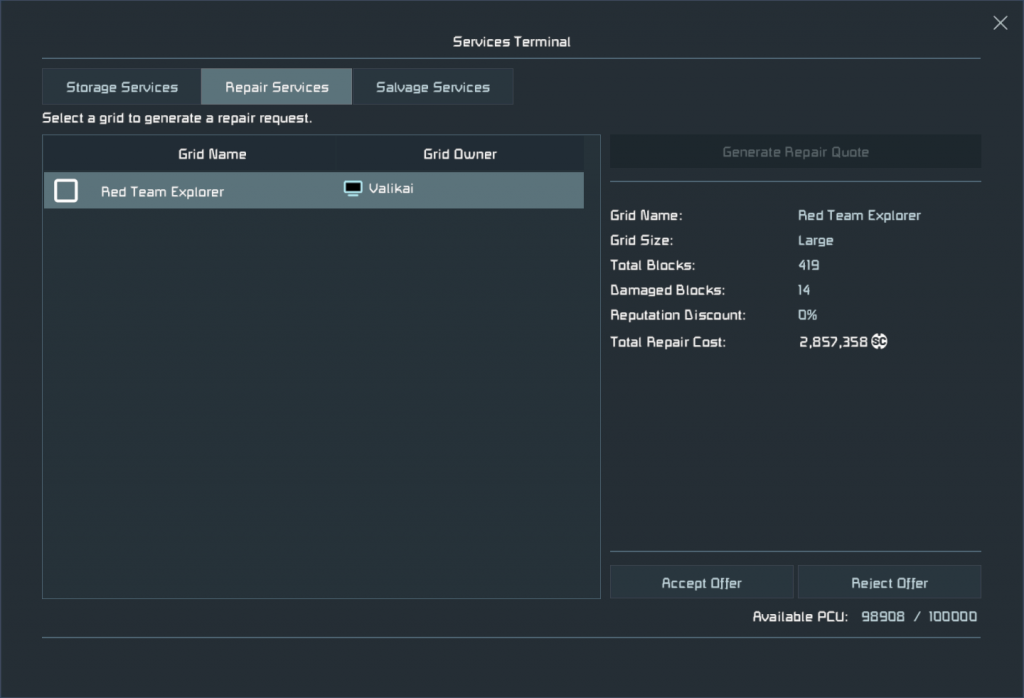
Repair Services can be used to repair your grid. Price is dependent upon the volume of missing components, and includes a small service fee per block. The higher your reputation is with the station you’re interacting with the lower the repair costs will be. Simply tap the Generate Quote button inside the interface to get a cost breakdown. If you agree to the cost, hit Accept Offer and your grid will instantly undergo repairs.
Salvage Services
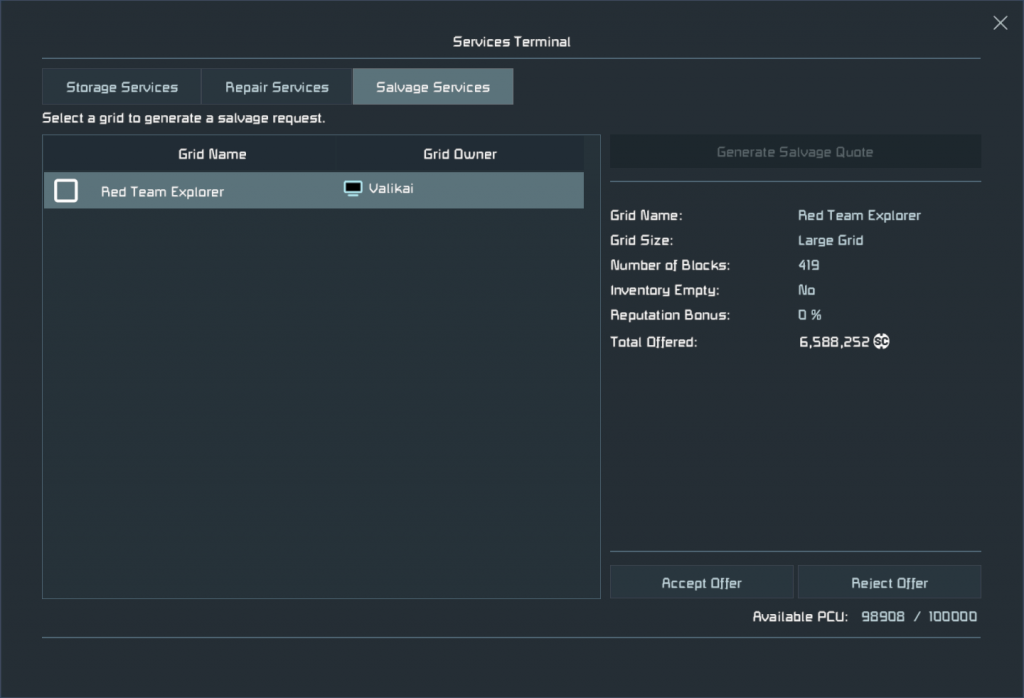
If you have an old grid you’re ready to part with, you can use the Salvage Service to sell it as scrap. Generating a Salvage Quote on a grid will offer you credits based on the number of parts that can be recovered from it. You’ll only be given a cut of their total value, but if the terms are accepted credits will be instantly deposited into your account. Having an increased reputation with the faction you’re selling to can result in up to a 20% increase in profits from salvage, so be sure to take your grid to a friendly outpost when using this service!
It’s important to note that any inventory items left inside the grid will be forfeit upon completing the transaction, so empty the grid first! You won’t be paid for, nor will you be able to recover, any items left inside the grid when it’s carted off to the salvage yard.
Grid Storage Service
The Storage Service lets you store entire grids offsite, freeing PCU, reducing world clutter, and making room for new creations. Unlike Repair and Salvage Services, you can access the Storage Service from any Services Terminal, allowing you to store and retrieve grids at your base, out in the field, or even at a nearby Trade Station.
Storing a Grid
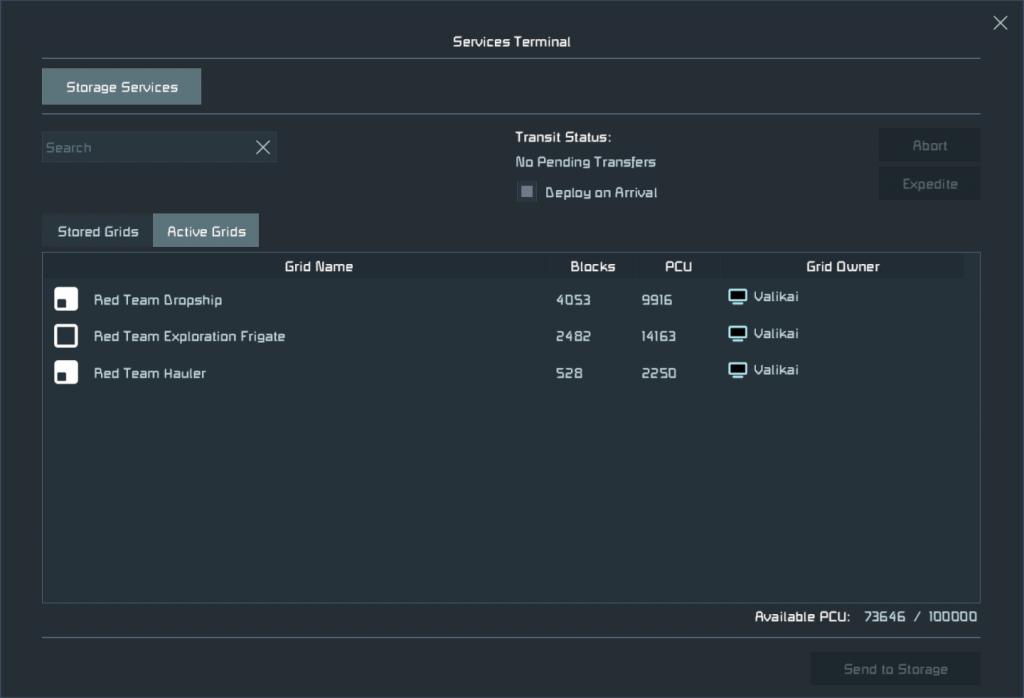
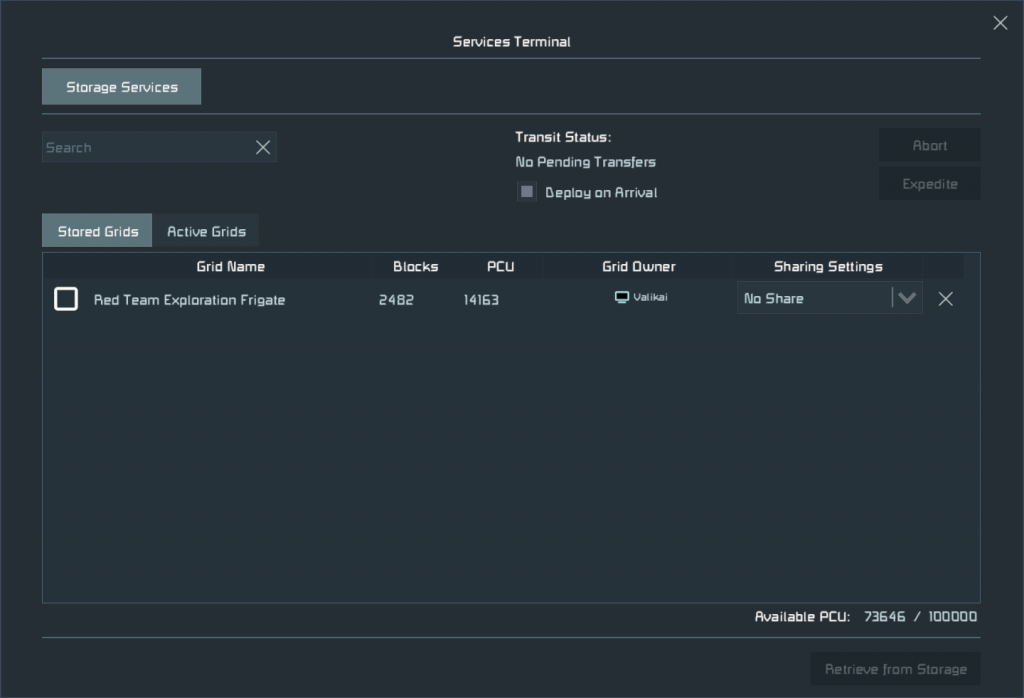
To store a grid, open the Services Menu. The Storage Service will be selected by default. In the Active Grids tab, you can view all grids within 200m of the terminal. Select the grid you want to store, then choose Send to Storage.
A grid can only be stored if:
- You own the majority of the blocks on the grid.
- It is a dynamic grid, not a station.
- Its total block count and PCU do not exceed any of the world’s limits.
- You have storage space available. By default, you can store up to 100 grids.
If your world settings do not allow items to be left inside stored inside grids, any items that remain inside it at the time of storage will be deposited into a temporary container when the grid is stored. Be sure to retrieve them!
Retrieving a Grid
You can view any grids you’ve sent to storage inside of the Stored Grids Tab.
From this screen you can recall a grid to your current location by selecting it in the list and pressing the Retrieve from Storage button. A countdown will appear in the top-right corner of the interface indicating how long it will take for the grid to be delivered to your location. Times can vary, with larger grids taking longer to retrieve, but you can pay Space Credits to expedite the delivery and reduce the current countdown by 50%.
Once the grid arrives, it will be deployed automatically within 200m of the terminal. You can also choose to hold the grid on arrival and place it manually when ready.
It’s important to note that grids will be deployed exactly as they are stored, be sure to have them flight ready or parked safely before retrieving in a location that they may not be suited for.
Precision Mode
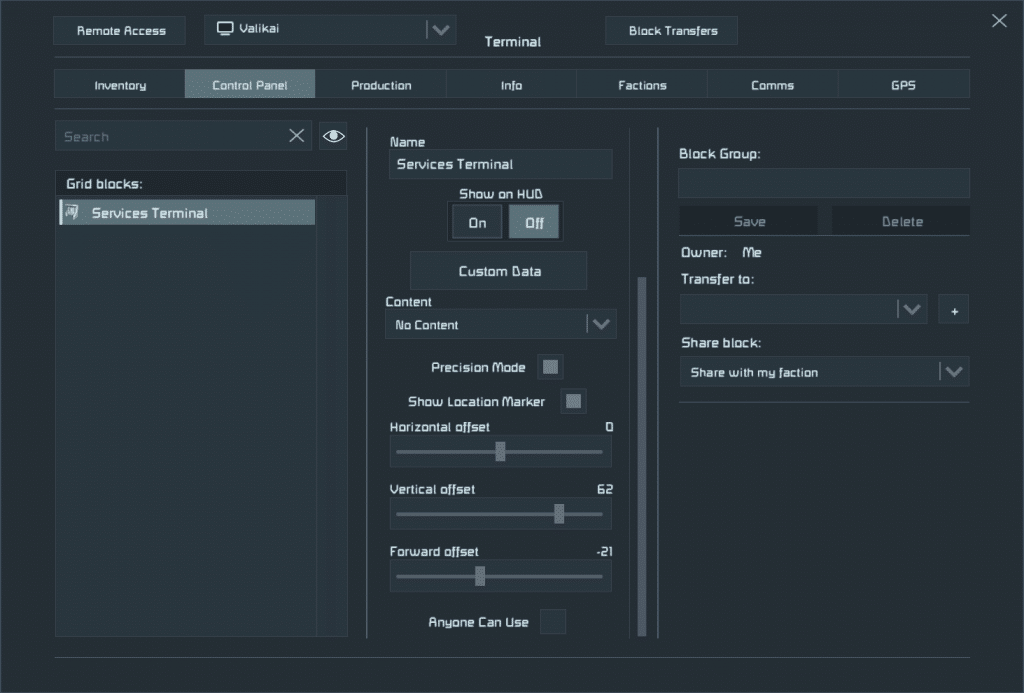
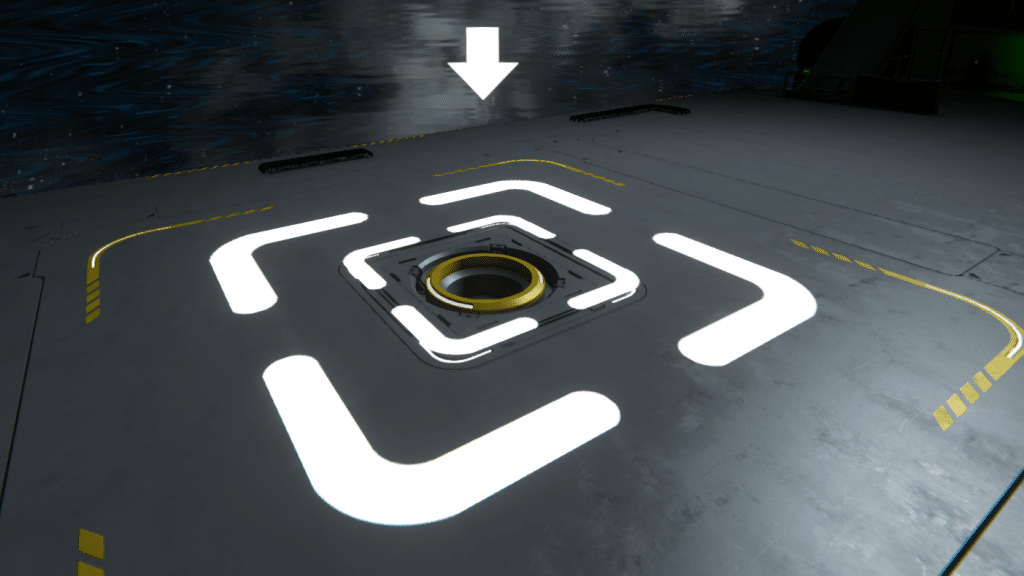
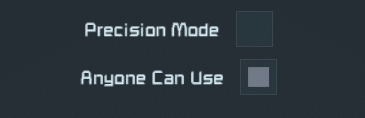
Inside of the Service Terminal’s Control Panel you’ll find a toggle for Precision Mode. When enabled, you’ll gain control of 3 directional sliders which allow you to dictate a specific area for the grid to be delivered to. The arrow represents the center of the grid, while the bottom of the marker represents the bottom of the grid’s bounding box. The grid’s orientation will be relative to the Service Terminal that is deploying it.
Access and Sharing
You can make your Services Terminal public by selecting Anyone Can Use in the control panel. This will allow anyone, regardless of ownership or faction standing, to use its services.
By default, any grid you store is only accessible to you. If you’d like to share a grid with a faction member, you can change its sharing settings inside of the Stored Grid’s tab. Be careful, anyone who retrieves the grid will then assume ownership of it – so be careful what you share!

Game Options and Configurable Values
The Services Terminal has a wide array of options allowing you to configure it to suit your needs.
Grid Storage Retrieval Time
This is a multiplier, located under the Misc category inside of Advanced World Settings, which increases or decreases the retrieval time of grids.
- Disabled – Disables wait times, allowing for instant retrieval of any grid. Ideal for casual scenarios.
- Fast – Timers are reduced by 50%
- Moderate – Default times are used
- Slow – Retrieval time is doubled
Allow Items in Stored Grids
When set to true, this setting allows grids to be sent to storage with items inside their inventory. Ideal for casual play or fast paced PvP scenarios. This setting can be found inside the Misc category of Advanced World Settings
Dedicated Server Options
Along with the options explained above, Dedicated servers have access to even more fine controls. Below you’ll find a full list of options available to server owners.
- Max Stored Grids: Adjusts the maximum number of stored grids each player is allowed to have stored in the world file. Set to 0 to disable Grid Storage in the world.
- Expedite Cost: Adjusts the Space Credit cost per second when expediting retrieval of a stored grid.
- Expedite Factor: Adjusts the amount of time reduced when expediting the retrieval of a stored grid.
- Minutes per PCU: Adjusts the time it takes for a grid to be recalled, based on how large the PCU value of that grid is.
- Max Retrieval Time: Configures the maximum amount of time a player should wait for a grid, regardless of grid size.
- Min Retrieval Time: Configured the minimum wait time when retrieving a grid from storage.
Powered by your "Need to Create"
Become a Space Engineer today!
Start Creating